Tagging policies
Tagging is fundamental to FinOps. Without consistent tags, you can't allocate costs, build showback reports, or track spending by team. Most organizations write wiki pages to communicate tagging standards, but wikis don't scale to decentralized infrastructure provisioning and can't be enforced.
Tagging policies let you define your organization's tagging standards once and enforce them everywhere, catching issues in pull requests before they reach production, and giving you visibility into existing tagging gaps across all your repositories.
Achieving tagging compliance
Infracost helps you achieve tagging compliance across your infrastructure through a multi-faceted approach.
1. Stop tagging issues before they reach production
Cloud-native enforcement tools like AWS Service Control Policies (SCP) and Azure Policy catch tagging issues too late. When terraform apply fails in the deployment pipeline, engineers need to create new pull requests, wait for another code review, and try again.
Infracost checks tagging policies in pull requests, showing engineers exactly which file and line number needs attention. Issues get fixed before code is merged so there's no deployment failures and no wasted cycles.
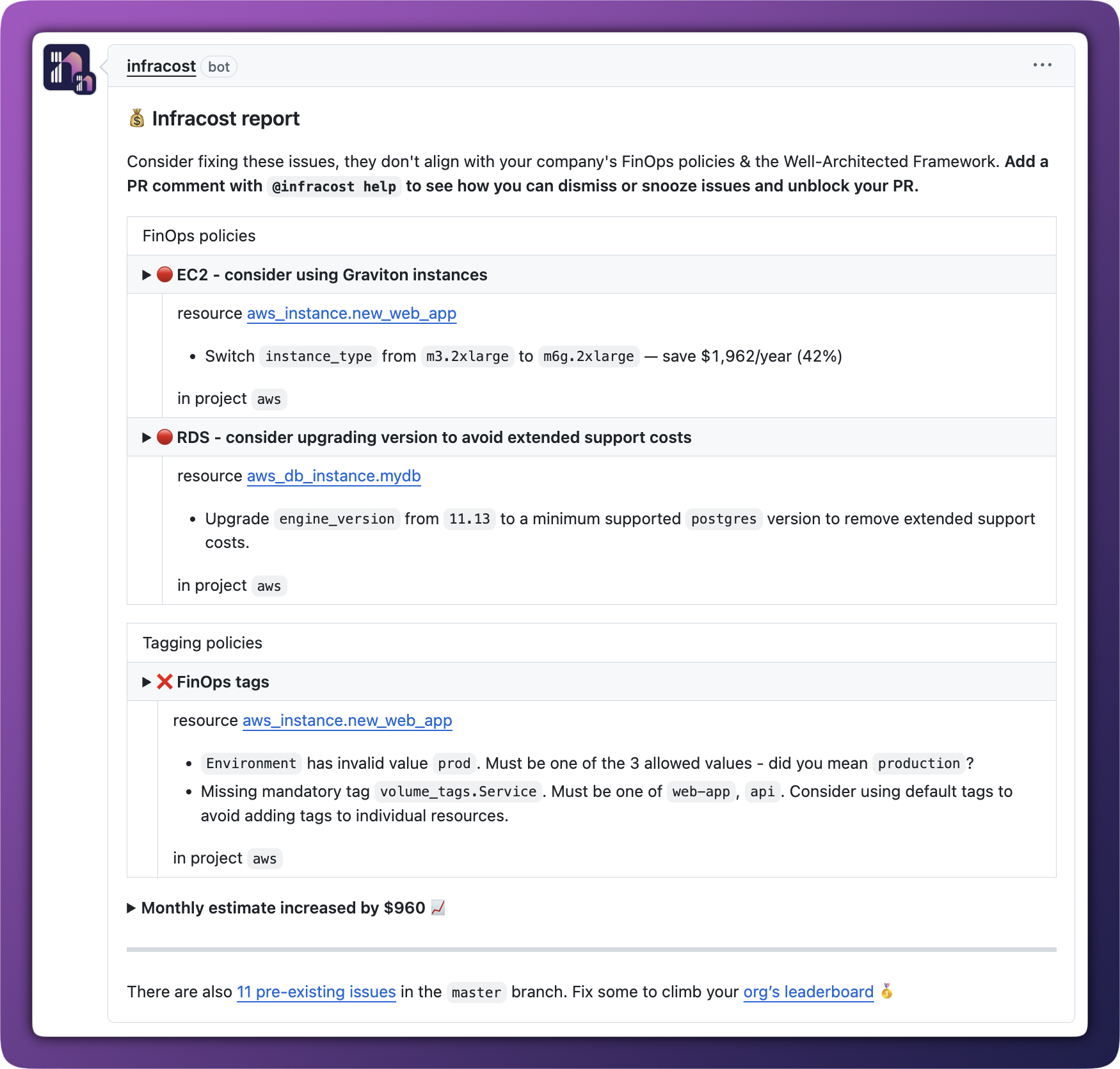
2. Burn down existing tagging debt
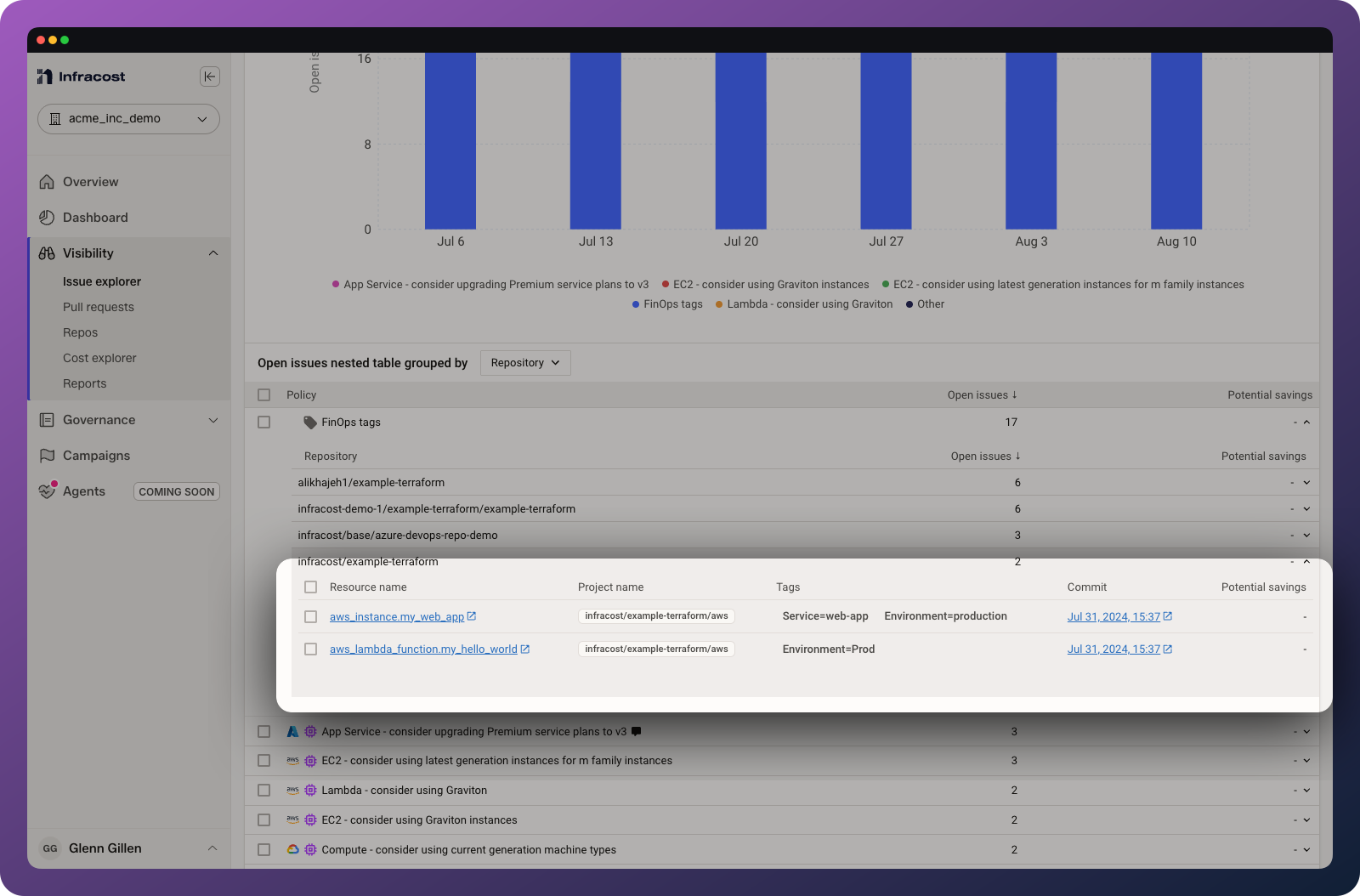
When you create a tagging policy, Infracost scans all your connected repositories and shows you exactly which resources don't comply. Unlike cloud vendor tools that show percentages of untagged costs, Infracost pinpoints the exact infrastructure-as-code resources that need attention (again, with the specific files and line numbers engineers need to change).
This makes tagging debt actionable. Engineers can fix issues directly in their code without FinOps teams needing to create meetings or Jira tickets.
3. Track your improvements over time
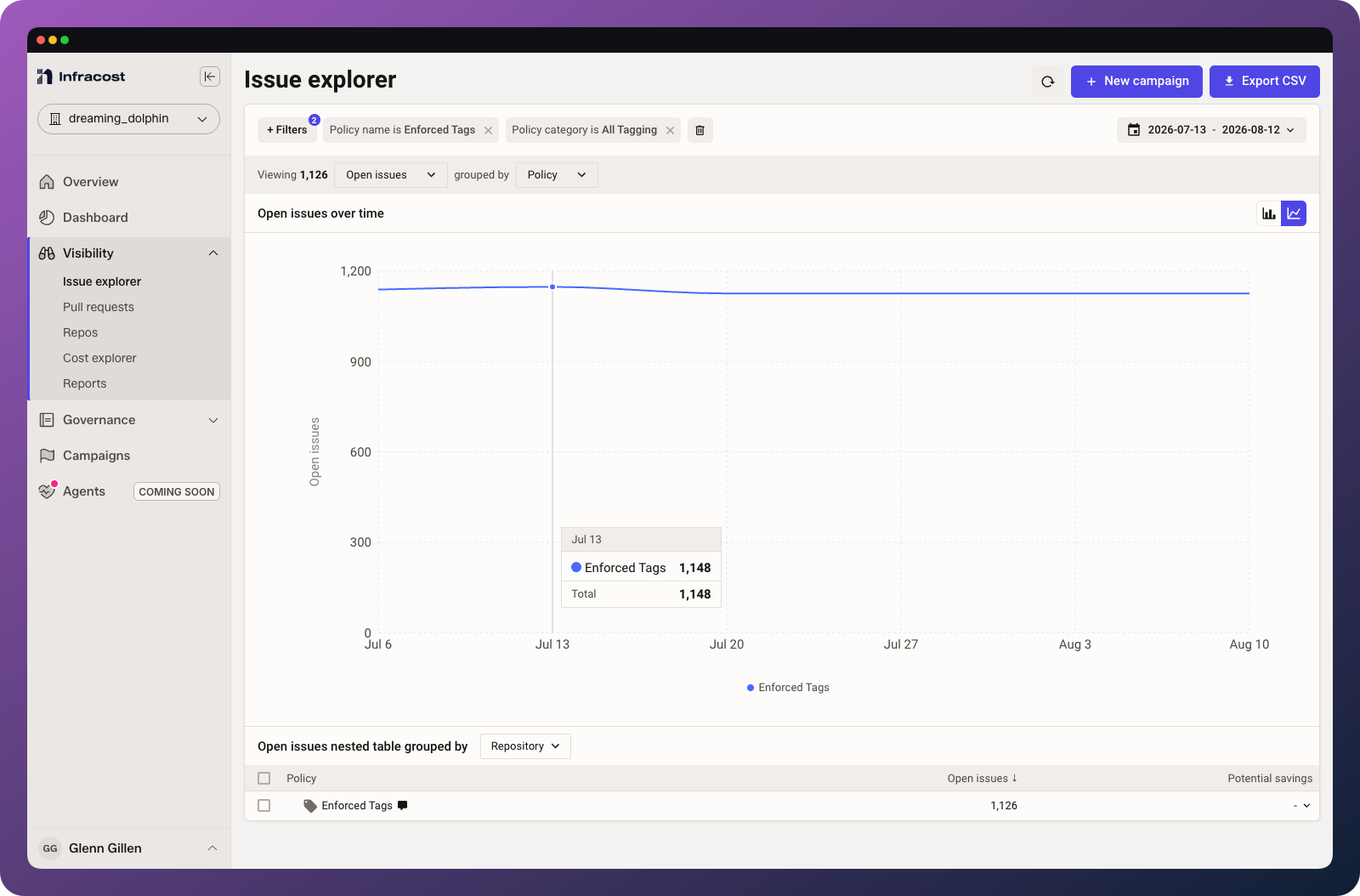
Tracking tagging compliance is a key FinOps KPI. Infracost shows you how many issues you're preventing in pull requests and how quickly you're burning down existing debt so you can demonstrate progress to leadership and keep teams accountable.
Create a tagging policy
To create a tagging policy, log in to Infracost Cloud and go to Governance > Tagging policies.
Define tag keys and values
You can define which tag keys are mandatory, which values are allowed, and include custom messages to help engineers take action.
You can validate tag values using regular expressions (ECMAScript syntax). Partial matches are used, so dev matches dev, development, and api-development, but .*-dev-.* won't match development.
💡 Tip: Make a regex pattern case-insensitive by adding /i to the end (e.g., prod/i matches prod, Prod, and PROD). However, we recommend avoiding case-insensitive matching since tags are case-sensitive in most clouds and inconsistent casing leads to divergent data and inaccurate reporting.
When using regex validation, include a brief description of allowed values and examples in the tag key's custom message box.
Set a custom pull request message
Add a custom message to include in pull request comments. This is your opportunity to explain why tagging matters to your organization and link to your internal standards documentation.
Choose enforcement level
Decide whether pull requests that fail this policy should be blocked until the issue is fixed. We recommend giving engineering teams a warning period of 1-3 months before putting policies into enforcement mode. Depending on how your source control system is configured, admins can usually bypass enforcement for edge cases.
Configure filters
We recommend leaving "Include details in pull requests" enabled so engineers see exactly what failed and why. During testing, you can disable this to see results only in Infracost Cloud.
You can also filter policies to specific IaC types (Terraform/Terragrunt, CloudFormation/CDK, ARM, or Kubernetes), resource types, or repositories. This is useful for gradual rollouts, for separating cloud and Kubernetes tagging standards (see below), or for Azure teams using tag inheritance (see below). Cost estimates recorded before IaC types were tracked are not excluded by the IaC types filter.
Once you save your policy, click Re-run policies to scan all your repositories immediately so you don't need to wait for a pull request to test it.
Enforcing cost allocation tags
The most common tagging policy use case is ensuring resources have the tags required for cost allocation. This typically includes tags like CostCenter, Team, Environment, and Project.
To set this up, create a policy with your required tag keys. For tags that should have specific values (like Environment), add regex validation:
| Tag Key | Validation | Example values |
|---|---|---|
CostCenter | ^[A-Z]{2}-[0-9]{4}$ | IT-1234, HR-5678 |
Environment | ^(prod|staging|dev)$ | prod, staging, dev |
Team | None (any value allowed) | platform, payments |
In your custom PR message, link to your internal wiki that explains what values are valid for each tag and how to find your team's cost center code.
Azure resource group tag inheritance
Many Azure teams only require tags on azurerm_resource_group resources and enable Azure's tag inheritance feature so child resources inherit tags automatically.
To implement this pattern, use the Resource types filter in your policy settings to only check azurerm_resource_group resources. This prevents false positives on individual resources that will inherit their tags from the resource group.
Kubernetes tagging policies
If Kubernetes support is enabled for your organization, Kubernetes labels are checked as tags, and tagging policies apply to Kubernetes resources by default. Kubernetes labeling conventions (e.g. app.kubernetes.io/name) usually differ from cloud tagging conventions (e.g. CostCenter), so we recommend separating the two with the IaC types filter in your policy settings:
- In your existing cloud tagging policy, exclude the Kubernetes IaC type (or include only the IaC types you write cloud infrastructure in, such as Terraform / Terragrunt).
- Create a separate Kubernetes tagging policy with your label standards, and include only the Kubernetes IaC type.
To scope a Kubernetes policy to specific kinds, combine the IaC types filter with the Resource types filter. Kubernetes resource types are bare lowercase kinds — deployment, statefulset, replicaset, daemonset, job, cronjob, service, persistentvolumeclaim, and namespace — so, for example, a policy can require labels on statefulset resources only. Resource type filters match the whole type name (with * wildcards), not substrings, so deployment cannot accidentally match Terraform resource types that contain the word "deployment" (such as aws_api_gateway_deployment).
Kubernetes labels are read from the workload object's metadata.labels, after Helm templating and Kustomize label transformers are applied. Labels set only on the pod template inside a workload are not read, so put governance labels on the workload's own metadata. Annotations are not checked as tags. See the Kubernetes docs for details.
How tagging policies work
Tagging policies check all AWS, Azure, and Google Terraform resources that support tagging including resources that Infracost doesn't show cost estimates for yet. If Kubernetes support is enabled for your organization, Kubernetes resources are also checked, using their labels as tags (see above).
What gets checked:
- Default tags applied in Terraform
providerblocks - Tags set in modules (the actual module version being used is checked)
- Google Cloud
labels(Google uses "labels" instead of "tags")
AWS-specific behavior
- Auto Scaling groups: For
aws_autoscaling_group, ifpropagate_at_launchisn't set totrue, the resource fails tagging policies as resources launched from that ASG won't inherit the tags. - EC2 instances with EBS volumes: For
aws_instancewithebs_block_deviceorroot_block_device, ifvolume_tagsis set that's checked; otherwise.tagsfor each block device is checked. Providerdefault_tagsapply automatically to block device tags (AWS provider 5.39+). - Launch templates: The
tag_specificationsattribute is checked. Tags withresource_typeofinstanceorvolumeare associated with referencingaws_instanceoraws_autoscaling_groupresources. - Tag propagation: The
propagate_tagsattribute is checked for resources that require it:aws_ecs_service,aws_scheduler_schedule,aws_batch_job_definition,aws_dynamodb_table,aws_pipes_pipe, andaws_cloudwatch_event_target. - ℹ️ Note: Individual tag resources like
aws_autoscaling_group_tag,aws_ec2_tag, andaws_ecs_tagaren't checked as these are used to tag resources defined outside Terraform.
Google Cloud-specific behavior
- For Google Cloud resources,
labelsare checked. For these resources,user_labelsare checked instead:google_monitoring_alert_policygoogle_monitoring_custom_servicegoogle_monitoring_notification_channelgoogle_monitoring_servicegoogle_sql_database_instancegoogle_monitoring_slo.
Troubleshooting
If you run into any issues, please join our community Slack channel, we'll help you very quickly 😄
Policy not appearing in PR comments
Common causes: "Include details in pull requests" is disabled, repository isn't connected to Infracost Cloud, or PR filters are excluding the repository.
Solution: Check your policy's settings and verify the repository appears in Settings > Repos.
Resources showing as non-compliant when tags exist
Common causes: Tags are set in a module using a different version than expected, case mismatch between policy and actual tag values, or provider default_tags aren't being inherited (check provider version).
Solution: Click into the specific issue in Issue Explorer to see the actual tag values detected. For module issues, verify the module version in your Terraform configuration.
Too many false positives
Common causes: Policy is too broad for your organization's tagging strategy, or resource type filter not configured for Azure tag inheritance patterns.
Solution: Use repository filters to limit scope, add resource type filters, or adjust your regex patterns.