
Engineer guide
Infracost runs as a set of guardrails in your CI/CD pipeline. When you open a pull request that changes infrastructure code, Infracost checks it against your organization's tagging and FinOps policies and comments with the cost impact and any issues it finds, all before the change is merged and deployed. This guide is for engineers who have just seen one of those comments. It covers how to sign in to review issues and how to resolve them.
How it works
Your platform or FinOps team connects Infracost to your source control and CI/CD pipeline once. After that, Infracost monitors every pull request that changes infrastructure code: it statically analyzes your Infrastructure as Code (i.e., Terraform, CloudFormation, CDK, or ARM), prices the change using your organization's custom rates, and checks it against the tagging and FinOps policies your team has defined. When it finds a problem, it posts a comment right on the pull request, where you're already working. That comment shows the cost diff and lists any policy violations or missing tags the change introduces.
Running the checks in the pipeline turns them into guardrails. Problems show up while the change is still in review, so you can deal with them before anything ships to production. You do most of that work on the pull request itself. When a fix needs real code changes, you can work on it locally with the Infracost Dev tools, covered below.
Before you begin
- ✅ Your repos are connected to Infracost. If you're already seeing Infracost comments on pull requests, this is done.
- ✅ You have access to Infracost Cloud, either through your company's SSO or an invite from your FinOps lead or engineering manager.
Signing in to Infracost Cloud
To review the issues Infracost has raised, or see them across all your repos, sign in to the dashboard. Go to dashboard.infracost.io, enter your company email address, leave the password empty, and click Log In. You'll be redirected to your organization's SSO provider to complete sign-in.
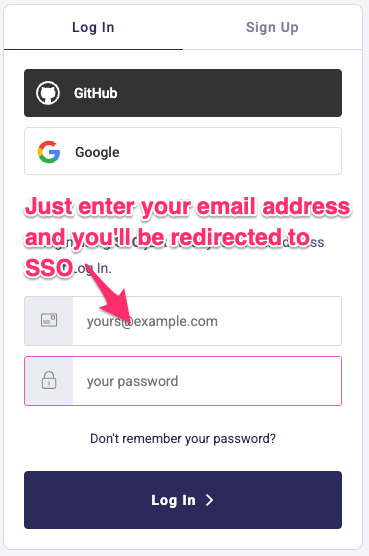
If you aren't redirected to SSO, your company hasn't enabled it and you'll need to be invited to the account, so reach out to your FinOps lead or engineering management. Infracost Cloud also supports logging in with GitHub, Google, or an email and password.
ℹ️ Note: Engineers only need the Org Viewer role to review and resolve issues. If you can't log in at all, ask your FinOps lead to invite you.
You don't need to sign in to fix an issue on a pull request. That happens in your source control system. Signing in is for reviewing issues in the dashboard. If you want to run Infracost on your own machine to work on a fix, the Infracost Dev tools sign you in the first time you use them; see Get started for setup.
Resolving issues on your pull requests
When Infracost flags an issue on a pull request, you have a few ways to resolve it. Fixing the underlying code is always the best option. If you can't do that right now, dismiss or snooze the issue to unblock the merge.
Fix the code in the pull request
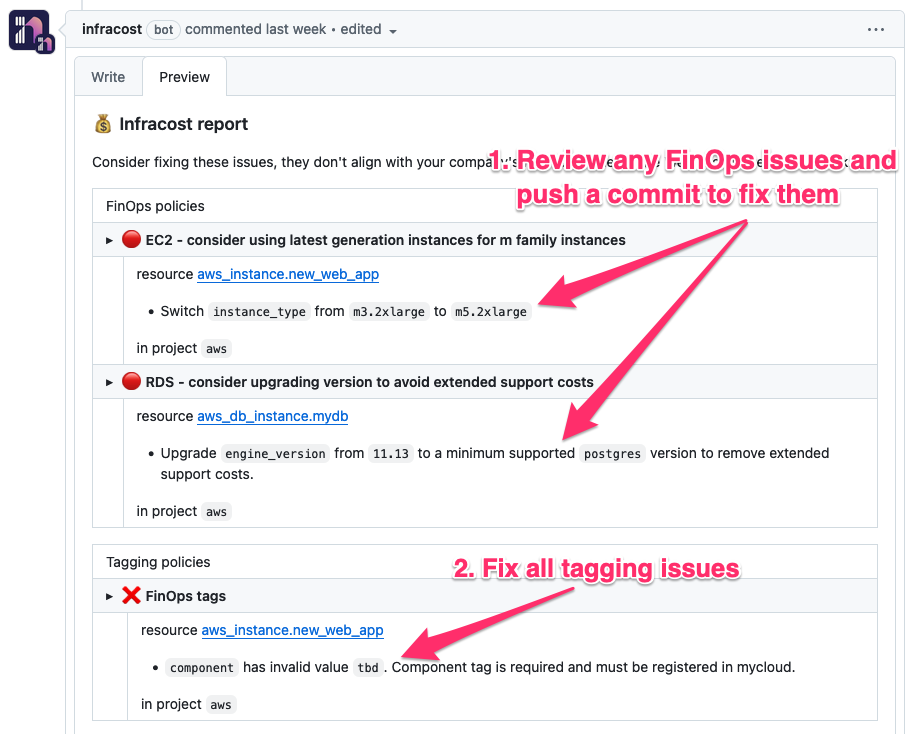
Review the Infracost comment and push commits that resolve the issues before you merge. In the example below, the change isn't following two FinOps best practices and is missing the component tag.
Work on the fix locally with Infracost Dev
When resolving an issue means changing infrastructure code, the Infracost Dev tools bring the same prices and policies to your machine, so you can see the effect of a fix before you push it:
- The IDE extension shows cost estimates and flags policy and tagging issues inline as you edit
.tf,.hcl, CloudFormation, and CDK files. - The AI agent skills let an agent such as Claude Code or Cursor scan a project and apply fixes on request, for example: "Scan this project and fix all tagging violations."
- The Infracost CLI scans your IaC and reports the same cost and policy results from the command line.
These tools sign you in to Infracost the first time you use them. See the Infracost Dev docs for setup and a deeper look at fixing issues locally.
Let Infracost open a fix pull request
For many policy failures, Infracost can generate the fix for you as an AutoFix pull request, with no manual editing needed. Where AutoFix is available, click "Open AutoFix PR" to create a branch with the corrected code, then review and merge it like any other change.
Dismiss or snooze issues you can't fix yet
Fix everything you can first. For anything that remains, add a pull request comment with @infracost help to see how to dismiss or snooze it.
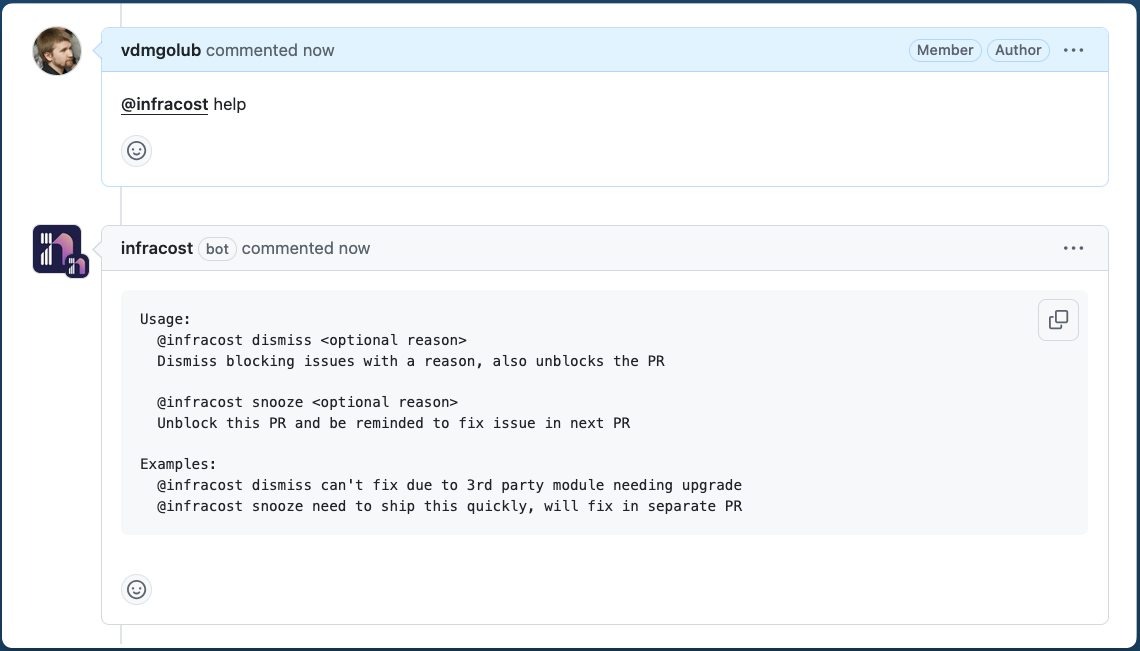
The dismiss and snooze commands only apply to issues from policies configured as Require engineers to resolve or dismiss issues. Use dismiss when Infracost should ignore an issue from now on. Snooze is different: it unblocks the merge now but keeps the issue on your radar, nudging you the next time that code changes.
Viewing all issues across your repos
Once you're signed in, use the organization selector in the top menu to choose your organization, then go to Visibility > Repos and search for your repo name. Click the repo to see all of its FinOps and tagging issues, or use the Issue explorer to filter and group issues across repos.
If your repo isn't listed, it hasn't been added yet. Reach out to your FinOps lead or engineering management, since adding a repo requires Admin access.
To work through issues offline, export them to CSV and filter or group them in a spreadsheet:
- For tagging issues, go to Governance > Tagging policies > Export CSV.
- For FinOps issues, go to Governance > FinOps policies > Export CSV.
Troubleshooting
You aren't redirected to SSO when logging in
Common causes: Your company hasn't enabled SSO, or your email address isn't associated with an account yet.
Solution: Ask your FinOps lead or engineering manager to invite you to the organization. If your company uses SSO, confirm you're entering your company email address and leaving the password field empty. See Single sign-on (SSO).
You can't find your repo in the dashboard
Common causes: The repo hasn't been connected to Infracost, or you're viewing the wrong organization.
Solution: Check the organization selector in the top menu first. If the repo still isn't listed, ask your FinOps lead to add it, as this requires Admin access.
Your pull request is blocked and you can't merge
Common causes: A policy is configured to require engineers to resolve or dismiss issues, and the pull request still has open issues.
Solution: Fix the issues in the pull request, or if you can't address them now, comment @infracost help and use the dismiss or snooze command to unblock the merge.