Reports
Infrastructure cost changes happen across dozens of repositories, hundreds of pull requests, and multiple teams. Without regular summaries, FinOps and engineering leaders lose visibility into what's actually changing and by the time the cloud bill arrives, it's too late to ask questions.
Reports give you automated summaries of cost changes across your organization, delivered on the schedule you choose. You see the most impactful changes across repos, projects, pull requests, and users without manually checking dashboards or chasing down engineers.
Staying on top of infrastructure costs
1. See what's changing before the bill arrives
Cloud bills are backwards-looking so by the time you see a spike, the changes that caused it were merged weeks ago. Reports flip this around by summarizing merged changes as they happen, so you know what's coming before invoices land.
Weekly reports work well for most teams: frequent enough to catch trends, infrequent enough to avoid noise.
2. Identify high-impact changes and contributors
Reports surface the changes that matter most — The pull requests with the biggest cost impact, the repositories with the most activity, and the engineers driving significant changes. This makes it easy to spot patterns and have informed conversations with teams about their infrastructure decisions.
3. Keep stakeholders informed automatically
Instead of manually compiling updates for leadership or finance, schedule reports to go directly to the people who need them. Different audiences can get different reports: engineering managers might want weekly repo-level summaries, while finance might prefer monthly organization-wide rollups.
Create a report
Log in to Infracost Cloud and go to Visibility > Reports > New Report.
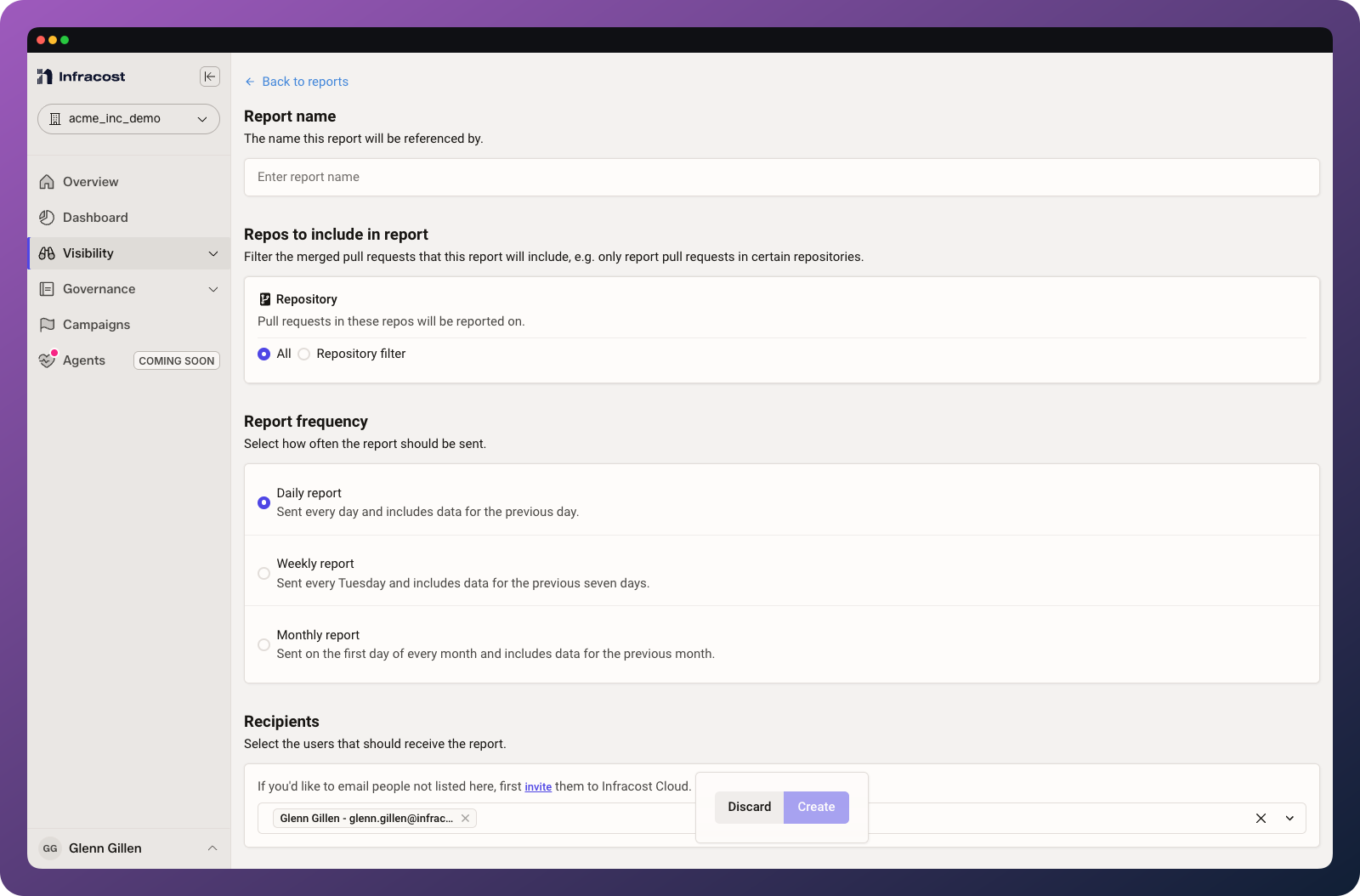
When creating a report, you can configure:
| Setting | Options | Use case |
|---|---|---|
| Repositories | All repos or specific selection | Focus reports on production repos, team-specific repos, or high-spend areas |
| Frequency | Daily, weekly, monthly | Weekly works for most teams; daily for high-velocity environments; monthly for executive summaries |
| Recipients | Any organization members | Send to engineering leads, FinOps, finance, or leadership |
ℹ️ Note: Only merged pull requests are included in reports. Open PRs and unmerged changes don't appear until they're merged.
What's in a report
Reports summarize cost changes across your selected repositories for the reporting period. Each report includes:
- Total cost impact — net change across all merged PRs
- Top repositories — repos with the largest cost changes
- Top pull requests — individual PRs with the biggest impact
- Top contributors — engineers driving significant cost changes
Common report configurations
Weekly engineering summary
Audience: Engineering managers, tech leads Frequency: Weekly Scope: Team-specific repositories Purpose: Keep engineering leadership informed about their team's infrastructure cost trends
Monthly FinOps rollup
Audience: FinOps team, finance Frequency: Monthly Scope: All repositories Purpose: Provide a comprehensive view of infrastructure cost changes for budget planning and variance analysis
Daily high-velocity monitoring
Audience: Platform team, SREs Frequency: Daily Scope: Production repositories Purpose: Catch significant changes quickly in fast-moving environments
Troubleshooting
Not receiving report emails
Common causes: Email address not verified, reports going to spam, or no merged PRs in the reporting period.
Solution: Check your spam folder, verify your email in Org Settings, and confirm there were merged PRs with cost changes during the period.
Report shows no data
Common causes: No pull requests were merged during the reporting period, or repository filters exclude all activity.
Solution: Check that the selected repositories have had merged PRs. For new setups, you may need to wait for the first reporting period to complete.
Missing repositories in report
Common causes: Repositories aren't connected to Infracost Cloud, or they're excluded by the report's repository filter.
Solution: Verify repositories appear in Settings > Repos, then check the report's repository filter settings.
If you run into any issues, please join our community Slack channel, we'll help you very quickly 😄