 Also,
Also, Repo Custom Properties
As your infrastructure-as-code estate grows, knowing which team owns which repository and how repositories roll up into business units, divisions, and cost centers becomes essential. Without this organizational context, cost data is just numbers without accountability.
Custom properties let you map repositories to your organizational hierarchy, enabling cost allocation by team, division, or business unit. You define the mapping once, and Infracost automatically enriches all cost data with your organizational context which makes reports, filters, and exports meaningful to your business.
What custom properties enable
1. Attribute costs to teams and business units
Every repository in Infracost can be tagged with custom properties like team, division, cost_center, or any hierarchy that matches your organization. This lets you answer questions like "How much is the Platform team's infrastructure costing?" or "What's the infrastructure spend for the Engineering division?"
2. Know who to contact about issues
When a repository has a FinOps policy failure or a guardrail triggers, knowing who owns that repo matters. Custom properties can include team contact information (for example Slack channels, email addresses, or team names) so the right people are easy to find.
3. Filter and segment across the platform
Once custom properties are configured, you can filter dashboards, reports, and exports by any property. View costs for a specific division, generate reports for a business unit, or export data segmented by cost center for finance.
4. Integrate with your existing systems
Custom properties can pull from sources you already maintain such as GitHub repository metadata, Backstage service catalogs, ServiceNow CMDBs, or metadata files within your repos. No need to maintain a separate mapping just for Infracost.
How custom properties work
Custom properties connect two things:
- Your organizational hierarchy — A CSV file defining the structure (teams, divisions, business units) and any associated metadata (contact info, cost centers)
- Repository mapping — A way to identify which row in your hierarchy each repository belongs to
When Infracost processes a repository, it extracts an identifier (like a team code or component name), looks it up in your hierarchy CSV, and attaches all the associated properties to that repository.
Example: A repository contains a file indicating component_name: database. Your CSV maps database to team: platform and division: engineering. Infracost now knows this repo belongs to the Platform team in the Engineering division.
Setting up custom properties
Navigate to Organization Settings > Custom Properties in Infracost Cloud. Setup involves three steps:
Step 1: Upload your organizational hierarchy
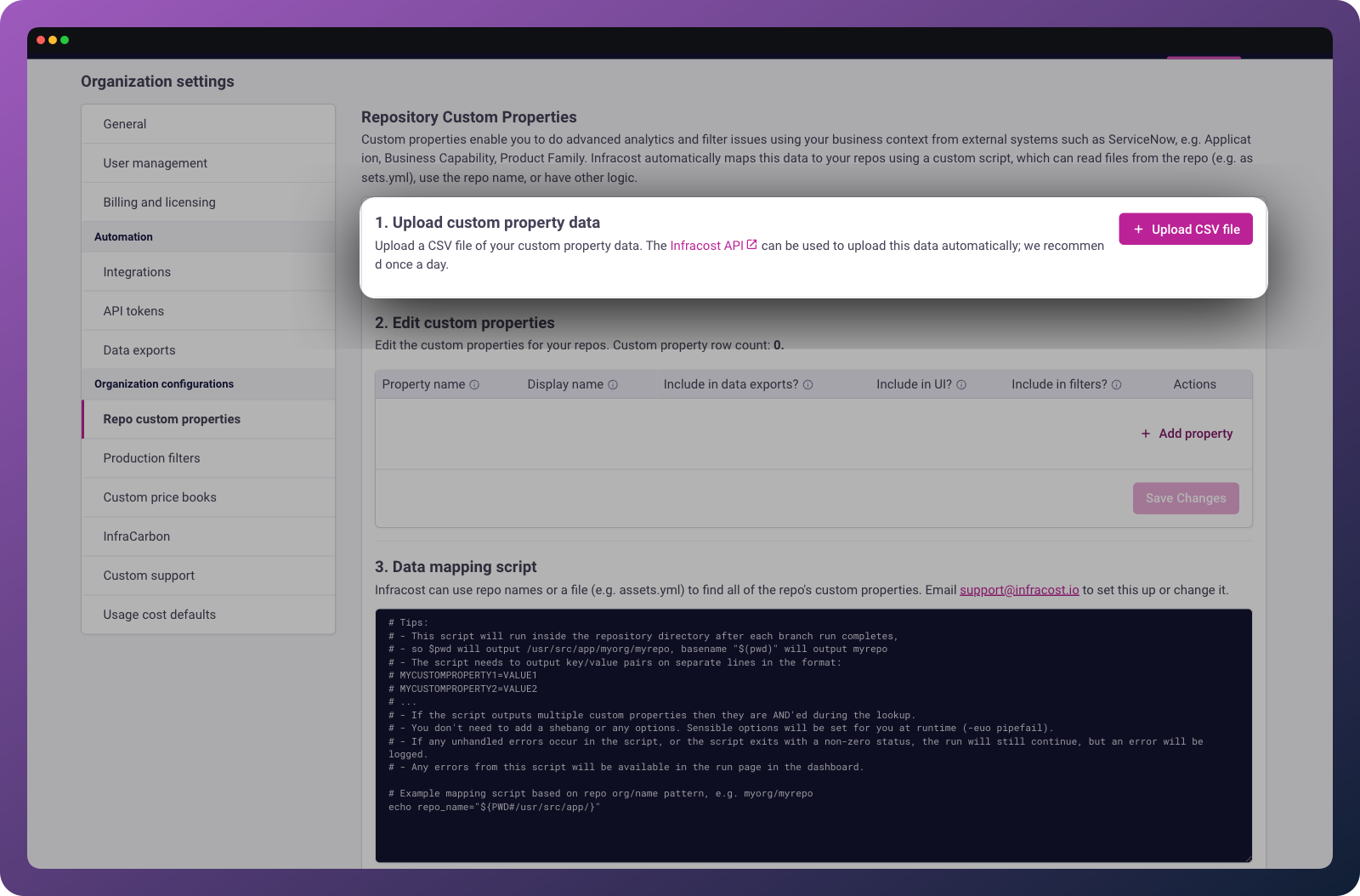
Provide a CSV file containing your organizational structure. At minimum, include:
- A lookup column — the identifier that maps repositories to rows (e.g.,
component,team_code,service_name) - Property columns — the values you want attached to repositories (e.g.,
team,division,business_unit,cost_center)
component,team,division,business_unit,slack_channel
website,web-team,product,consumer,#web-team
database,platform,infrastructure,enterprise,#platform-eng
payments,payments-team,product,consumer,#payments
You can include as many columns as needed. Common properties include:
- Organizational hierarchy:
team,division,business_unit,cost_center - Contact information:
slack_channel,team_email,team_lead - Metadata:
criticality,environment_type,compliance_scope
Step 2: Configure property settings
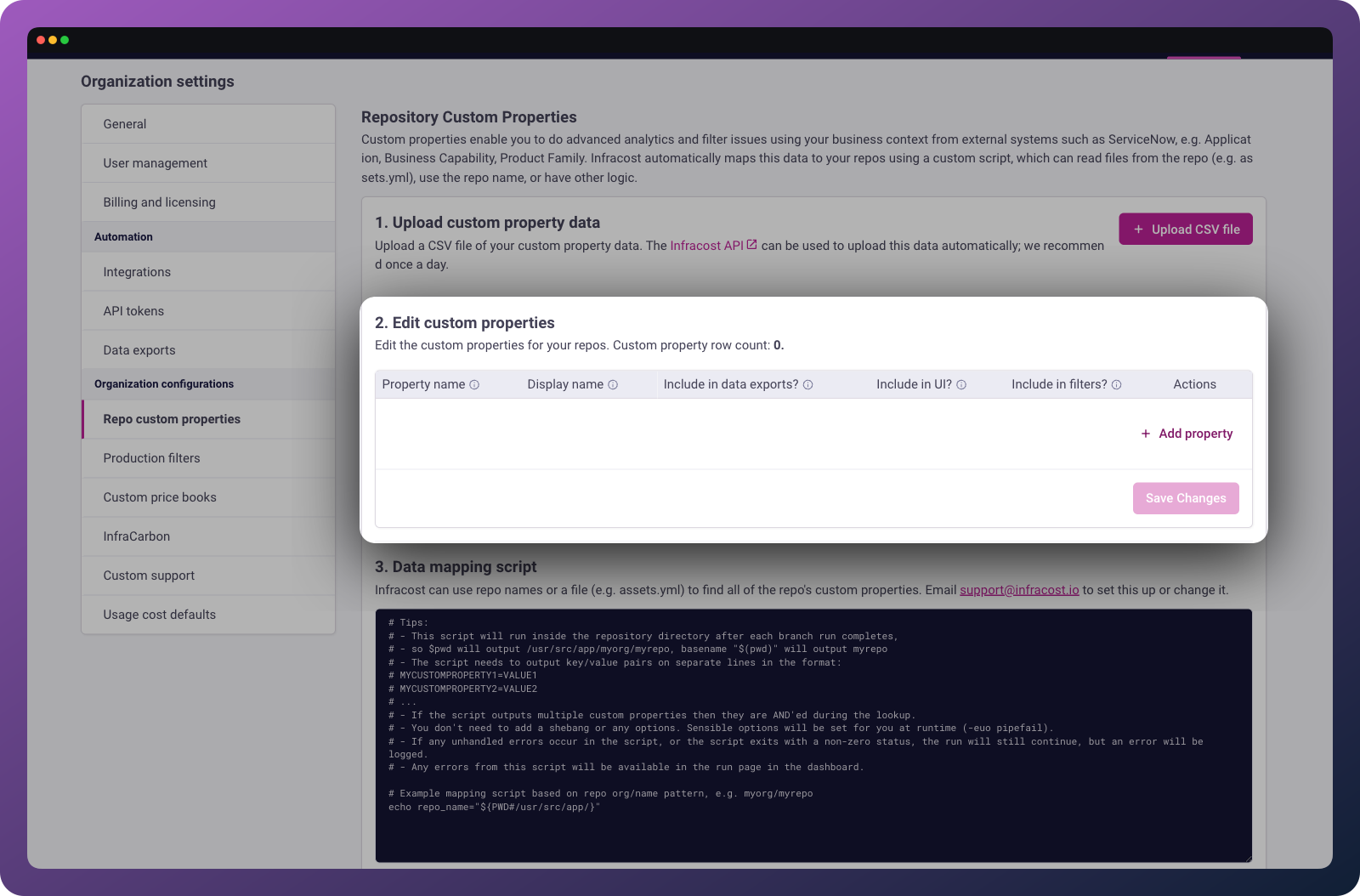
For each column in your CSV, configure:
| Setting | Description |
|---|---|
| Display name | How the property appears in the Infracost UI |
| Lookup column | Whether this column is used to match repositories (usually just one column) |
| Visible | Whether to show this property in the UI |
| Include in exports | Whether to include in CSV/data exports |
Step 3: Configure repository mapping
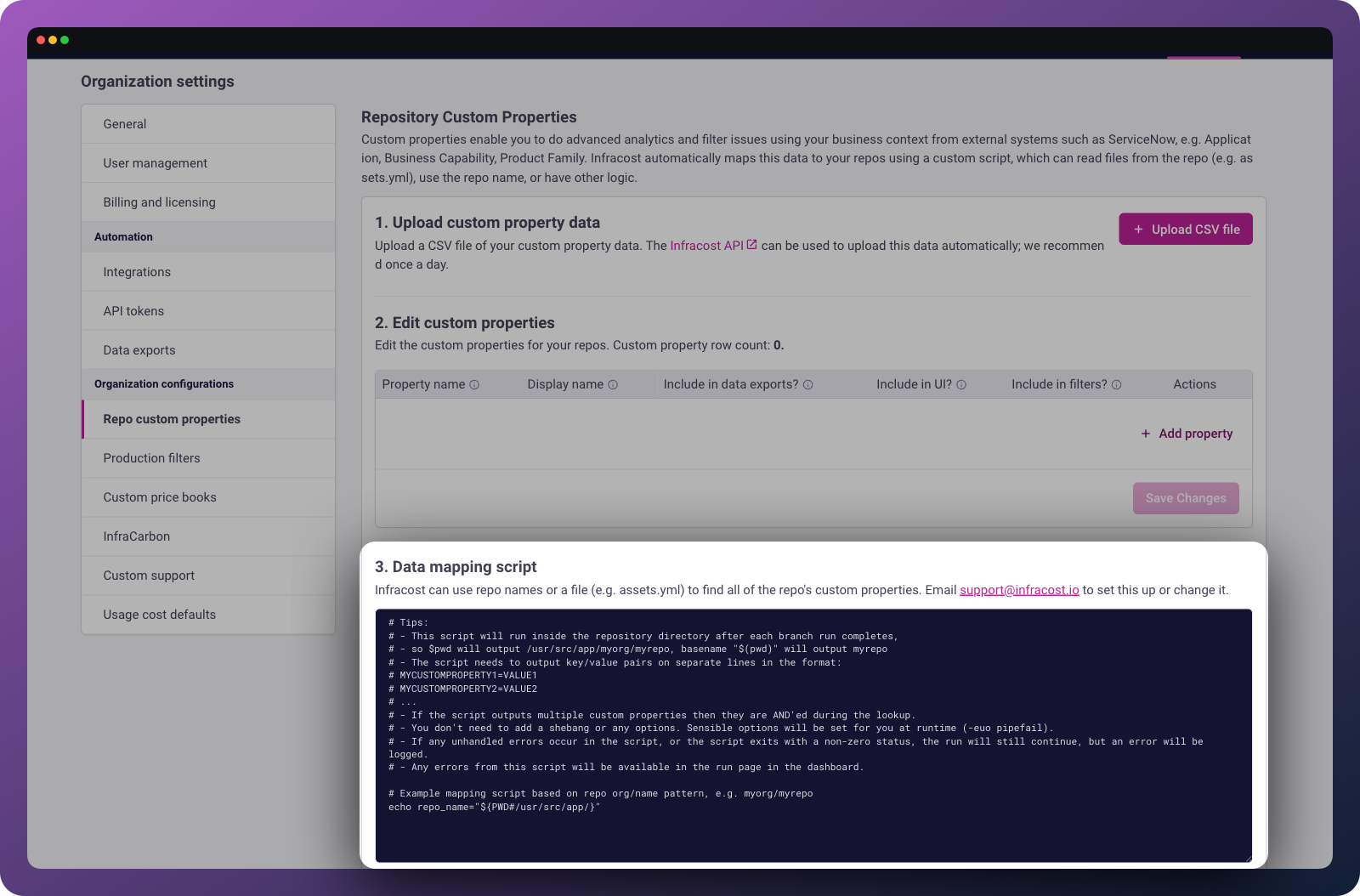
Tell Infracost how to extract the lookup value from each repository. You have several options depending on where your mapping data lives:
Option A: Metadata files inside repositories
If your repositories contain metadata files (e.g., infracost.yml, catalog-info.yaml, or similar), write a mapping script that extracts the relevant value.
The script runs in the root of each repository and outputs key-value pairs:
#!/bin/bash
# Extract component_name from a YAML file
component=$(yq '.component_name' ./metadata.yml 2>/dev/null)
if [ -n "$component" ]; then
  echo "component=$component"
fi
Output format:
component=database
region=us-east-1
Option B: Backstage or ServiceNow exports
If you maintain service ownership in Backstage or ServiceNow, export that data and include the repository identifier in your CSV. The mapping script extracts the repository name or a service identifier that matches your export.
#!/bin/bash
# Use the repository name as the lookup key
echo "repo_name=$(basename $PWD)"
Your CSV would then use repository names as the lookup column:
repo_name,team,division,slack_channel
frontend-app,web-team,product,#web-team
backend-api,platform,infrastructure,#platform-eng
Updating custom properties
Your organizational structure changes over time as teams reorganize, new divisions form, or repositories change ownership. You can update custom properties through:
Dashboard UI: Navigate to Organization Settings > Custom Properties and upload an updated CSV.
REST API: Programmatically update your CSV data, useful for automated syncs from Backstage, ServiceNow, or other systems.
curl -X POST "https://api.infracost.io/v1/orgs/{orgSlug}/custom-properties" \
  -H "Authorization: Bearer $INFRACOST_API_KEY" \
  -H "Content-Type: text/csv" \
  --data-binary @custom-properties.csv
See the API documentation for details.
When you update the CSV, Infracost automatically resyncs all repositories with the new property values and typically completes within a minute.
ℹ️ Note: If you rename columns in your CSV, you'll need to reconfigure the property settings to match the new column names.
Common configurations
If there's a specific use-case or source of metadata you'd like us to support, please reach out via support@infracost.io so we can discuss it with you.
Team ownership with Slack contact
Goal: Know which team owns each repo and how to reach them.
service_id,team,slack_channel,team_email
auth-service,identity,#identity-team,identity@company.com
payment-api,payments,#payments-eng,payments@company.com
Mapping script extracts service_id from a metadata file in each repo.
Cost center hierarchy
Goal: Roll up costs through a business hierarchy for finance reporting.
team_code,team_name,department,division,cost_center
T001,Platform,Infrastructure,Engineering,CC-1001
T002,Web,Product,Engineering,CC-1002
T003,Mobile,Product,Engineering,CC-1002
T004,Analytics,Data,Engineering,CC-1003
Mapping script extracts team_code from a config file.
Backstage service catalog integration
Goal: Reuse ownership data already maintained in Backstage.
Export your Backstage catalog to CSV with repository names as identifiers:
repo,system,domain,owner,lifecycle
frontend-app,web-platform,product,team-web,production
backend-api,core-services,platform,team-platform,production
Mapping script outputs the repository name:
#!/bin/bash
echo "repo=$(basename $PWD)"
Troubleshooting
If you run into any issues, please join our community Slack channel, we'll help you very quickly 😄
Repositories not showing custom properties
Common causes: The mapping script isn't outputting values for those repos, the output format is incorrect, or the lookup value doesn't match any row in your CSV.
Solution: Check that your mapping script runs successfully in the repository and outputs the expected format (key=value, one per line). Verify the lookup value exists in your CSV.
Properties not updating after CSV upload
Common causes: The lookup column configuration doesn't match your CSV, or repositories don't have the expected input values.
Solution: Verify the lookup column is correctly configured in property settings. Check that repositories have been processed since the CSV was uploaded (custom properties update on the next branch run, or you can trigger a resync).
Script errors failing repository runs
Common causes: The mapping script has syntax errors or fails on repositories that don't have the expected files.
Solution: Make your script defensive and handle missing files gracefully. Use || true or conditional checks to prevent failures:
#!/bin/bash
# Safely extract value, outputting nothing if file doesn't exist
if [ -f "./metadata.yml" ]; then
  component=$(yq '.component_name' ./metadata.yml 2>/dev/null)
  [ -n "$component" ] && echo "component=$component"
fi