Cost guardrails
Cost surprises in the cloud bill usually trace back to a single pull request such as a change that seemed reasonable at the time but had unexpected cost implications. Guardrails catch these changes before they're merged, giving teams visibility and control without slowing down development.
You define thresholds (cost increases, percentage changes, or budget limits), and Infracost monitors every pull request against them. When a threshold is exceeded, guardrails can notify stakeholders, add context to the PR comment, or block the merge until someone reviews it.
Controlling cloud costs
1. Catch cost spikes before they reach production
Engineers don't always realize the cost implications of their infrastructure changes. A seemingly small configuration tweak like changing an instance type, adding replicas, or enabling a feature can add thousands to your monthly bill.
Guardrails flag these changes the moment they appear in a pull request. Engineers see the cost impact immediately, and stakeholders get notified before anything is merged. No more discovering expensive changes in next month's invoice.
2. Enforce budgets at the source
Budget conversations usually happen after costs have already exceeded limits. Guardrails flip this around by triggering when a change would push costs over a threshold… before the code is merged.
You can set guardrails to block pull requests that would exceed budgets, requiring review from a team lead or FinOps before proceeding. This keeps budget enforcement in the development workflow rather than as a post-hoc scramble.
3. Keep stakeholders informed without meetings
When significant cost changes are coming, the right people need to know. Guardrails automatically notify team leads, FinOps, or finance via email, Slack, or Microsoft Teams when thresholds are crossed. Without requiring manual handoffs.
This visibility prevents surprise conversations and gives stakeholders time to plan for budget adjustments or ask clarifying questions while the change is still in review.
4. Track your cost prevention
Infracost tracks the difference between the costliest version of a PR (when the guardrail triggered) and the final merged cost.
For example: an engineer opens a PR that would increase costs by $10K. The guardrail triggers, the team optimizes the change, and it merges with a $2K increase instead. That's $8K in prevented cost and Infracost tracks it.
From the Infracost Cloud dashboard, you can see total cost prevention from guardrails and drill into the audit trail of individual PRs.
Create a guardrail
To create a guardrail, log in to Infracost Cloud and go to Governance > Cost Guardrails.

You can create multiple guardrails with different thresholds. For example, a lower threshold that notifies team leads, and a higher threshold that blocks the PR until reviewed.
Give it a descriptive name

Give your guardrail a name that will be descriptive to both yourself and others in your team.
Set thresholds

Choose what triggers the guardrail:
| Threshold type | Use case | Example |
|---|---|---|
| Cost change | Protect against unexpected cost spikes | Trigger when a PR adds more than $2,000/month |
| Cost change percentage | Scale thresholds to current spend | Trigger when a PR increases costs by more than 25% |
| Monthly cost threshold | Enforce budget limits | Trigger when a PR would push total costs above $10,000/month |
The monthly cost threshold triggers when a PR crosses the threshold from below to above. A change from $9,500 to $10,500 triggers a $10,000 threshold, but a change from $10,500 to $11,000 doesn't (you're already over).
ℹ️ Note: Thresholds are currency-independent. A threshold of 2000 triggers for $2001, €2001, or £2001.
Configure notifications

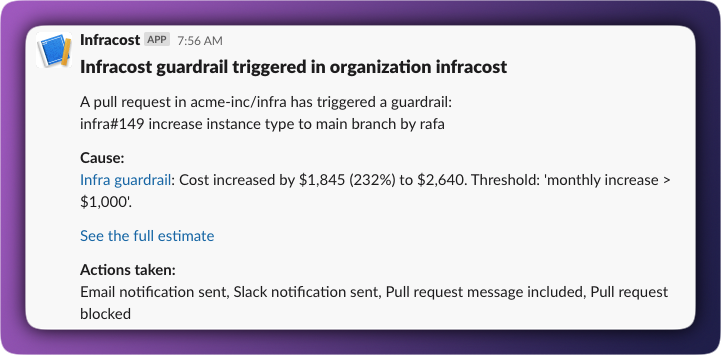
When a guardrail triggers, you can notify stakeholders through multiple channels:
Email: Select users from your organization to receive notifications.
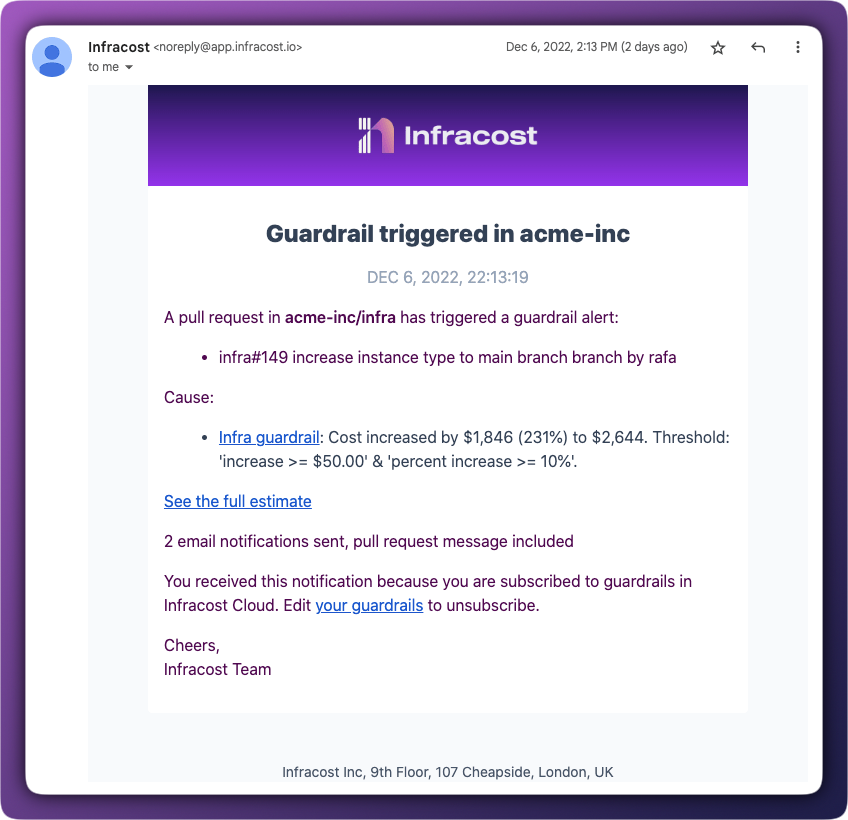
Slack: Create a Slack webhook and paste the URL.
Microsoft Teams: Use a channel email address to send notifications to a Teams channel.
Pull request comment: We recommend enabling this so engineers see guardrail information directly in the Infracost PR comment.
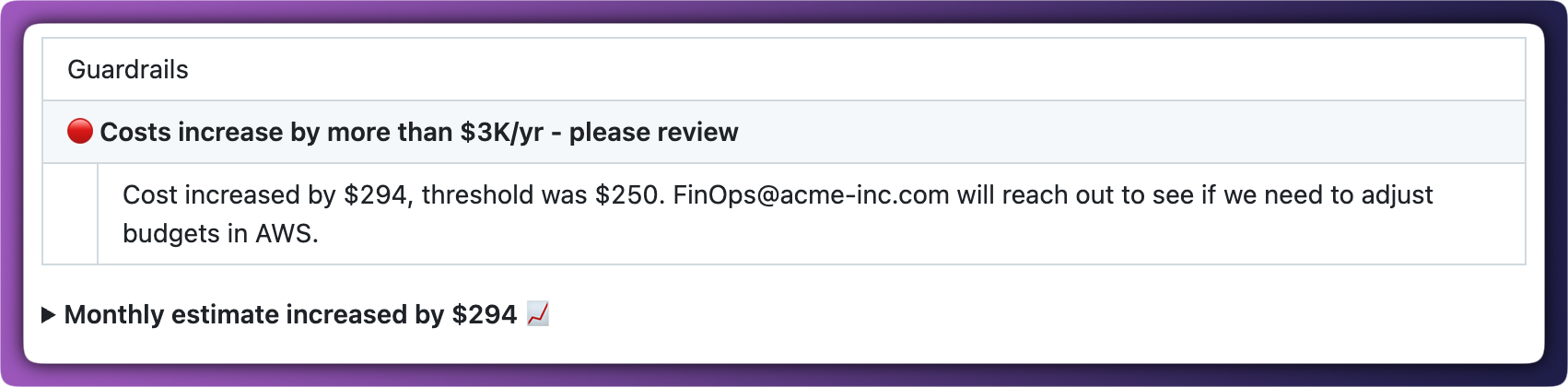
For all notification types, you can add a custom message explaining why the guardrail exists or what happens next after someone reviews it.
Actions to take
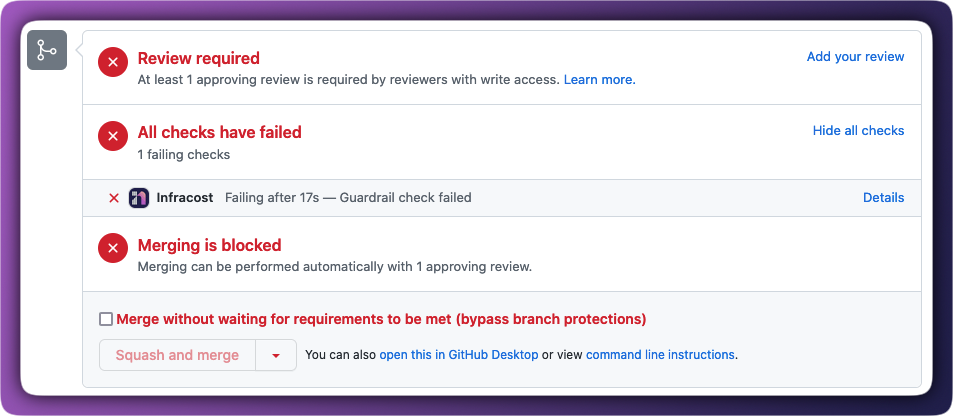
For high-threshold guardrails, you can block pull requests from being merged until they've been reviewed. Infracost signals to your source control system that the PR check has failed and you then configure your source control to require passing checks before merge.

To require approval of exceptions before merging:
- Enable "Require approval before merging" in Infracost when creating the guardrail
- Configure your source control system to require the Infracost status check
| Platform | Configuration |
|---|---|
| GitHub | Make Infracost a required check |
| Azure Repos | Make Infracost a required check |
| GitLab | Make Infracost a required check |
When a PR is blocked, it looks like this:
Unblock pull requests
When a PR is blocked, the email notification includes a link to the PR page in Infracost Cloud. From there, you can review the cost estimate, see guardrail details, and unblock the PR.
If someone with admin access on GitHub or GitLab overrides the guardrail and merges anyway, Infracost sends an additional notification to everyone subscribed to the guardrail. This maintains visibility even when guardrails are bypassed.
Advanced settings
Scope
Choose whether to evaluate thresholds against the pull request as a whole or against individual projects within the PR.

Projects are sub-groupings within a repo, things like workspaces (dev/stage/prod) or Terraform modules (auth/api/dashboard). Evaluating per-project is useful when you want different budget limits for different environments.
Customizations
Customize the pull request comment with additional context.

Include details in pull requests: We recommend enabling this to include guardrail information in the Infracost pull request comment.
Custom message: Add a message that will appear in notifications when the guardrail triggers. Use it to give additional context or instructions to the engineers in your team, such as "Review the estimate to ensure it meets your expectations. If you are unsure what to do, check with your team lead."
Pull requests to monitor
By default, guardrails monitor all pull requests. You can add filters to target specific repositories, projects, or branches. This can be useful for gradual rollouts or applying different thresholds to production vs. non-production.

How guardrails work
Here's an example showing how multiple guardrails interact:
Setup: You have two guardrails:
- "Cost spike alert" — notifies FinOps when a PR increases costs by more than 20%
- "Budget enforcement" — blocks the PR when total costs would exceed $10K/month
Scenario:
- Engineer opens a PR that's below both thresholds — both guardrails pass
- New commits push costs above the 20% threshold — first guardrail triggers, FinOps is notified
- More commits push total costs above $10K — second guardrail triggers, PR is blocked
- Team lead reviews and unblocks the PR in Infracost Cloud
- If more commits increase costs further, the PR stays unblocked (already reviewed) — this reduces noise and prevents frustrating engineers when stakeholders are already aware
This pattern keeps the right people informed at the right time without creating unnecessary friction for changes that have already been reviewed.
Troubleshooting
If you run into any issues, please join our community Slack channel, we'll help you very quickly 😄
Guardrail not triggering
Common causes: Threshold is higher than the actual cost change, PR filters are excluding the repository, or the guardrail is evaluating per-project but the cost change is spread across multiple projects.
Solution: Check the guardrail's filters and threshold settings. If using per-project evaluation, consider switching to per-PR evaluation for aggregate cost changes.
PR not being blocked
Common causes: "Block pull request" isn't enabled in the guardrail settings, or your source control system isn't configured to require the Infracost status check.
Solution: Verify the guardrail has blocking enabled, then check your source control's branch protection or policy settings.
Notifications not arriving
Common causes: Email addresses aren't verified, Slack webhook URL is incorrect, or the notification channel isn't selected in guardrail settings.
Solution: Test your Slack webhook separately, verify email addresses in Org Settings, and confirm the notification channels are enabled for the guardrail.