
Integrated Development Environment (IDE) Extensions
Infrastructure cost surprises don't start at the invoice — they start the moment someone picks the wrong instance type, forgets a tag, or unknowingly violates a FinOps policy. The Infracost IDE extension catches all three directly in your editor, showing cloud cost estimates, FinOps policy violations, and tagging issues as you write your infrastructure code, before anything reaches a pull request or production.
How it works
The extension runs a bundled Infracost language server in the background that analyses your open IaC workspace. As you edit .tf files or CloudFormation templates, the language server evaluates the affected resource blocks and publishes results back to your editor as code lenses — annotations that appear inline directly above each resource definition.
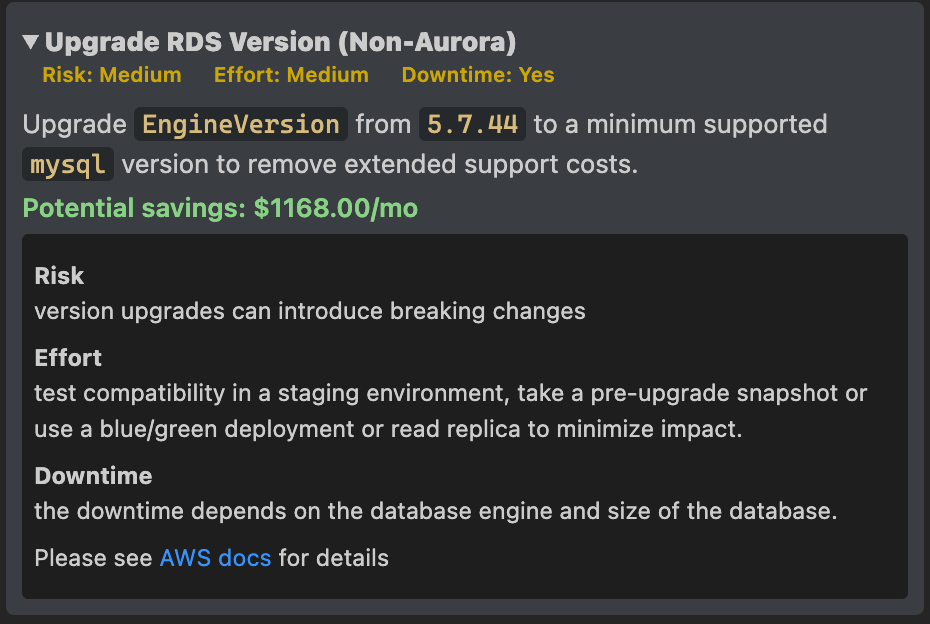
Clicking a code lens opens the resource details panel, which shows the full cost component breakdown for that resource alongside any FinOps policy violations and tagging issues. Policy violations include risk level, remediation effort, and potential savings. Blocking violations are clearly flagged so you can see at a glance which issues must be resolved before merging.
The extension enforces your organisation's own FinOps policies, tagging rules, and price books — configured centrally in Infracost Cloud and propagated automatically to every engineer's editor. When a policy changes, every IDE session across the organisation reflects it instantly. After that, the language server runs continuously in the background, re-evaluating resources as you make changes.
Currently supported IaC languages are Terraform (.tf) and CloudFormation (YAML and JSON templates). Support for additional languages will be added in future releases.
Key benefits
- Inline cost estimates: code lenses appear above every resource block and update as you edit, so cost impact is visible at the point of authorship.
- FinOps policy violations: policy issues surface in the resource details panel with risk rating, remediation effort, and potential savings — no separate dashboard required.
- Tagging issues: missing or non-compliant tags are highlighted in the resource details panel alongside cost data, so governance and cost context live together.
- No context switching: cost, policy, and tagging feedback is available without leaving your editor.
- CI integration: the same cost and policy data surfaces in pull requests via Infracost's CI/CD integrations, giving your team a consistent view from editor to PR.
Before you begin
✅ You have an Infracost account. Sign up for free if you don't have one yet.
✅ Your editor meets the minimum version requirement for your IDE (see each installation section below).
✅ Your workspace contains at least one supported IaC file. The language server activates when it detects Terraform or CloudFormation files.
1. Install the extension
Install the Infracost extension from your editor's marketplace. Find your editor below.
 Visual Studio Code
Requires VS Code v1.75.0 or above.
Open VS Code and go to the Extensions view (Ctrl+Shift+X / Cmd+Shift+X). Search for Infracost, select the extension published by Infracost, and click Install.
Alternatively, use the Quick Open command:
ext install Infracost.infracost
The extension is also listed in the Visual Studio Marketplace.
 Cursor
Open the Extensions panel (Ctrl+Shift+X / Cmd+Shift+X), search for Infracost, and click Install.
 Windsurf
Open the Extensions panel (Ctrl+Shift+X / Cmd+Shift+X), search for Infracost, and click Install.
 JetBrains
The Infracost plugin for JetBrains is available for IntelliJ IDEA, GoLand, WebStorm, PyCharm, PhpStorm, Rider, and any other IDE on the IntelliJ platform.
- Open your JetBrains IDE and go to Settings / Preferences > Plugins.
- Select the Marketplace tab and search for Infracost.
- Click Install and restart the IDE when prompted.
ℹ️ Note: If your IDE cannot reach the internet, download the plugin
.zipfrom the JetBrains Plugin Marketplace and install it via Settings / Preferences > Plugins > ⚙️ > Install Plugin from Disk…
 Google Antigravity
Open the Extensions panel, search for Infracost, and click Install.
 VSCodium
Open the Extensions panel (Ctrl+Shift+X / Cmd+Shift+X), search for Infracost, and click Install. VSCodium uses the Open VSX Registry, where the Infracost extension is published.
 Eclipse Theia
Open the Extensions view via View > Extensions, search for Infracost, and click Install. Theia sources extensions from the Open VSX Registry.
ℹ️ Note: The available extension API version varies by Theia release. The Open VSX Registry surfaces the most compatible version automatically. If you need to install manually, use Extensions: Install from VSIX… in the command palette.
2. Log in to Infracost
Once installed, the extension needs to authenticate with your Infracost account before it can retrieve pricing and policy data.
- Open any IaC project in your editor. The Infracost sidebar icon will appear in the activity bar.
- Click "Login to Infracost" in the Infracost sidebar.
- A browser window opens. Log in to Infracost Cloud and authorise the editor connection.
- Return to your editor. The language server will start scanning your workspace, and cost estimates will begin appearing as code lenses above resource blocks.
3. Read cost estimates and policy results in the editor
Once connected and configured, code lenses appear above every resource block in your IaC files and update as you edit.
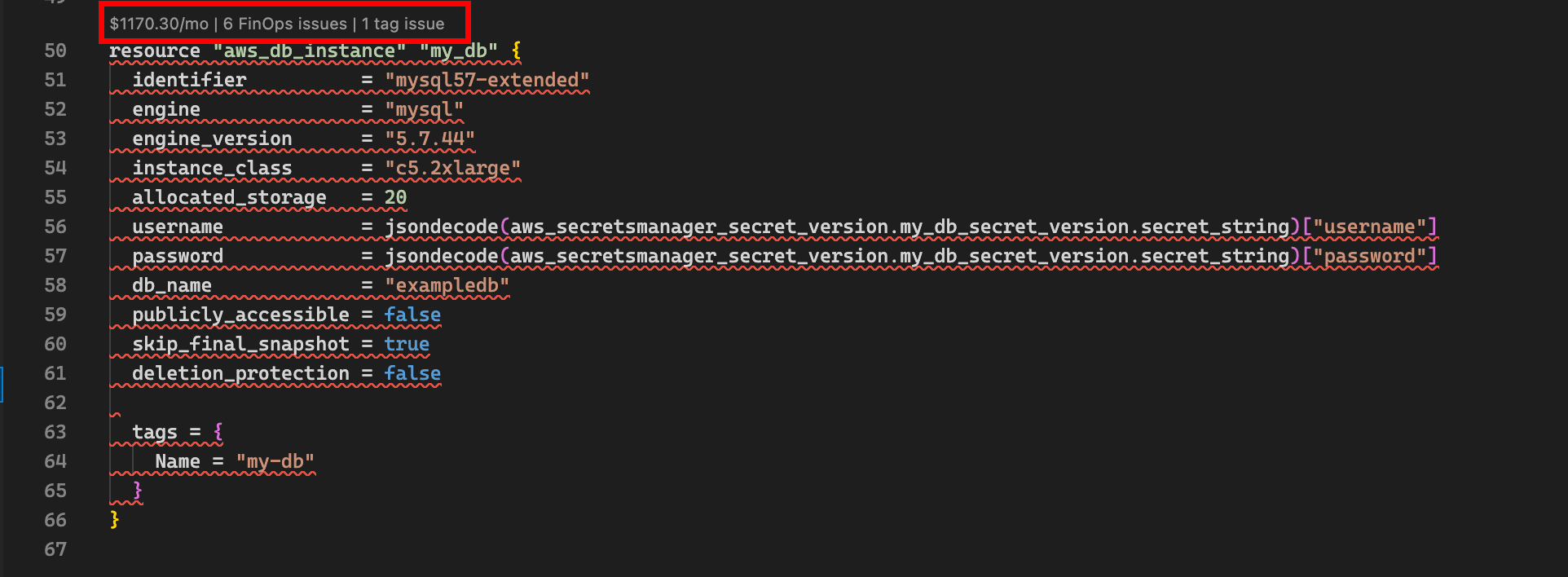
Click any code lens to open the resource details panel for that resource. The panel shows three things together:
- Cost breakdown: a line-item view of every pricing component, the quantity used, and its monthly cost contribution.
- FinOps policy violations: any policies triggered by this resource, with risk level, estimated remediation effort, and potential monthly savings. Blocking violations are clearly marked.
- Tagging issues: missing or non-compliant tags, cross-referenced against your organisation's tagging policies.
Commands
Access these commands from the Command Palette (Cmd+Shift+P / Ctrl+Shift+P).
| Command | Description |
|---|---|
Infracost: Login | Authenticate your editor with your Infracost account. |
Infracost: Restart Language Server | Restart the language server if it enters a bad state. |